

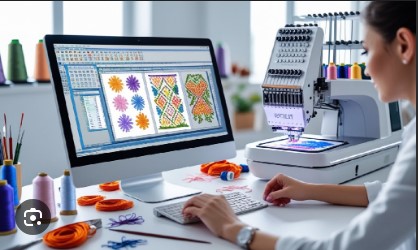

You just got a beautiful new Babylock embroidery machine. Maybe it is a Flare, a Solaris, or a Venture. You are excited to start stitching. You download a design from the internet, save it to a USB stick, and plug it in. Nothing happens. Or worse, the machine gives you an error message. Before you panic, know this: your Babylock is not broken. It just speaks a different language. Learning how to convert embroidery files for Babylock is the first skill every new owner needs to master.
Babylock machines are fantastic. They stitch beautifully, handle complex designs, and offer features that make embroidery fun. But they are particular about file formats. Feed them the wrong file, and they simply refuse to cooperate. This guide walks you through everything you need to know as a beginner, from understanding formats to choosing the right conversion method.
What Files Does Your Babylock Actually Read?
Let us start with the most important question. What format does your Babylock machine need? The answer is simpler than you might think.
PES is the primary format for Babylock machines . This is the file type that Brother and Babylock machines are designed to read. When you buy designs online, PES is usually the format offered for Babylock users.
Your Babylock can also read other formats. The Design Database Transfer software from Babylock lists supported formats including PES, PHC, PHX, PEC, DST, EXP, PCS, HUS, VIP, SHV, JEF, SEW, CSD, XXX, and PEN . But PES is the one you will use most often.
Newer Babylock machines also support wireless transfer. You can send designs directly from your computer to your machine without touching a USB stick . This is incredibly convenient once you have everything set up.
Why Image Files Won’t Work
Here is the honest truth that trips up many beginners. A JPG or PNG shows what the design looks like. It has no information about stitch density, underlay, pull compensation, or color sequence . When you try to load an image file directly, your Babylock has no idea what to do with it.
Converting a design to an embroidery format is not a simple file save. It is digitizing, the process of turning pixels into stitch commands . This requires making decisions about stitch types, directions, and settings that affect how the final embroidery looks and wears.
Think of it this way. A JPG is a photograph of a house. An embroidery file is the construction blueprint. The photograph shows what the house looks like. The blueprint tells the builders exactly how to construct it. You cannot generate the blueprint just by looking at the photo.
Method 1: Babylock’s Free Design Database Transfer
Before you spend any money, check out what Babylock offers for free. Design Database Transfer is a free data management tool from Babylock that runs on Windows computers .
This software lets you view embroidery designs, organize your library, and transfer designs wirelessly to compatible Babylock machines . It reads a huge list of formats including PES, DST, EXP, and many others.
Here is the catch. Design Database Transfer reads many formats but does not convert between them . If you have a design in DST format and need it in PES, this tool will not do the conversion. It simply shows you what you have and transfers it to your machine.
But for organizing your designs and getting them to your machine wirelessly, it is a fantastic free resource. Many Babylock owners rave about it. One user says, “I’m able to wirelessly transfer designs to my Flare (first try). I can download purchased designs to the library and transfer them to the Flare too” .
The software is Windows only. Mac users need to run Windows in a virtual machine or use Boot Camp . Some Mac users express frustration about this, so if you are on a Mac, be aware of this limitation.
Method 2: Professional Digitizing Software
If you plan to convert designs regularly and want complete control, professional software is worth considering.
Wilcom Hatch Embroidery is a popular choice for beginners and professionals. It supports reading and writing PES files for Brother and Babylock machines . Hatch includes auto-digitizing for quick conversions and manual tools for fine-tuning.
Embrilliance takes a modular approach and runs natively on Mac. This is great for Mac users who want to avoid Windows emulation. The software lets you edit and convert designs, and the StitchArtist modules add digitizing capabilities.
SewArt is a budget-friendly option for converting images to stitch files. It is not as powerful as Wilcom, but it works for basic designs and is much more affordable.
Ink/Stitch is a free plugin for Inkscape, which is a free vector graphics program . It supports PES export and includes basic digitizing tools. The learning curve is steep, but the price is right for beginners who want to experiment.
With these programs, you import your image, trace the design, assign stitch types, adjust density and underlay, and export as PES.
Method 3: Professional Digitizing Services
Here is the option that saves the most time and guarantees quality, especially for beginners. Professional digitizing services employ experienced digitizers who understand embroidery machines and techniques .
You upload your design to a service like Absolute Digitizing or SBS Digit. You specify that you need a PES file for your Babylock machine. You pay a small fee, typically $10 to $15 per design . Within hours, you receive a production-ready PES file.
What did they do? A human digitizer analyzed your image and made hundreds of decisions. They chose stitch types for each area. They set density based on typical fabric needs. They added underlay to prevent shifting. They applied pull compensation so elements stay shaped correctly. They sequenced colors for efficient production. They tested the file in simulation software before sending it .
For beginners, this is often the smartest path. You get professional quality without buying software or climbing the steep learning curve. As one digitizing service explains, “If you want a high-quality PES file without spending hours troubleshooting, professional digitizing is the best choice” .
Method 4: Online Converters (Use with Caution)
Free online converters are tempting. You upload your image, click convert, and download a file in minutes. For extremely simple designs with bold shapes and one color, they might produce a usable file .
But for anything complex, expect problems. Online converters often produce poor density, missing underlay, jagged edges, and arbitrary color reduction . They work best for simple shapes, minimal colors, and basic artwork .
They also raise privacy concerns. When you upload your logo to a random website, you have no idea what happens to it.
For beginners working on simple projects, online converters might be okay for experimenting. But for anything that matters, avoid them.
Step-by-Step: Preparing Your Design
Whether you use software or hire a pro, understanding the preparation steps helps you get better results.
Step 1: Start with a high-quality image. Use the highest resolution JPG or PNG you have. Vector files like AI or SVG are even better because they scale perfectly . Avoid blurry or pixelated images.
Step 2: Simplify the design. Embroidery works best with clean, bold shapes. Reduce colors where possible. Remove tiny details that will not stitch well. Avoid gradients and shadows .
Step 3: Set proper dimensions. Make sure your design fits your hoop size. Designs too large get cut off. Designs too small lose detail .
Step 4: Choose your conversion method. Decide whether you will use software, hire a pro, or try an online converter.
Step 5: Test on scrap fabric. Always stitch a test sample on fabric similar to your final project. This catches issues while materials are cheap .
Common Beginner Mistakes
Let us look at what typically goes wrong for new Babylock owners.
Using the wrong format. Your Babylock wants PES. If you load DST or JEF, it may not work. Check your manual and always save as PES for your machine .
Starting with low-resolution images. A tiny, blurry logo produces a blurry stitch file. Use the highest quality source available.
Skipping the test stitch. Screen previews lie. Only real fabric reveals truth. Test every new design on scrap material before stitching final products.
Ignoring hoop size. Loading a design larger than your hoop causes incomplete stitching. Check hoop dimensions in your software before exporting.
Getting frustrated too quickly. Embroidery has a learning curve. Every beginner makes mistakes. Be patient and keep learning.
The Babylock Software Ecosystem
Babylock offers more than just the free Design Database Transfer. They have a full line of software called Palette for users who want to digitize their own designs .
Palette 10 is the current version. It includes tools for digitizing, editing, lettering, and photo stitch conversion . Babylock also offers classes and tutorials to help users learn the software .
If you decide to invest in digitizing software, Palette is worth considering because it is designed specifically for Babylock machines. But it is expensive and has a learning curve, so it is not for everyone.
Which Method Should a Beginner Choose?
Your choice depends on your goals and budget.
If you want to get started quickly with minimal frustration, professional digitizing services are your best bet. For $10 to $15 per design, you get a file that is tested and guaranteed to stitch perfectly . No software to buy. No steep learning curve. No wasted thread on test after test.
If you enjoy learning new skills and want to understand the craft, start with Ink/Stitch. It is free, powerful, and teaches you the fundamentals of digitizing . Be prepared for a learning curve, but the skills you gain serve you forever.
If you have a Windows computer and want to organize your designs, download Design Database Transfer from Babylock. It is free and makes wireless transfer easy .
If you plan to digitize frequently and have budget for software, consider Hatch Embroidery or Palette. Both offer professional tools and good support for Babylock machines .
If you have a very simple design and want to experiment, try an online converter. But test on scrap fabric first and expect quality issues with anything complex.
Conclusion
Converting embroidery files for your Babylock machine does not have to be complicated. Start by understanding that your machine wants PES files. Know that image files like JPG and PNG will not work without digitizing.
You have several paths. Free tools like Design Database Transfer help you organize and transfer designs. Professional software like Hatch and Ink/Stitch let you digitize your own designs. Professional digitizing services deliver guaranteed quality for a small fee. Online converters work for simple experiments but risk poor quality.
Your Babylock machine is capable of stunning embroidery. Feed it properly converted PES files, and it will reward you with flawless results every time. Whether you choose the DIY path with software or the guaranteed path with professional services, the goal is the same: beautiful embroidery that brings your designs to life in thread.